



We have a general guide to getting started with the storage and computing resources at OIST in this guide.
As a unit leader there are some additional things that you need to know so you can manage the unit storage and related systems, and we will give you an introduction here.
As a unit leader, you are the owner of, and responsible for, all the unit data stored at OIST. In principle you need to personally initiate or approve of any changes to data ownership, access and so on. If a unit member requests us to do a change, we will ask them to CC you in the email so you can repond with a positive affirmation or denial.
You can delegate storage management to a unit member. Send an email to us at ask-scda@oist.jp and tell us who you want to appoint. We make a note of it, and will no longer ask for your feedback to requests from them. But remember that all the responsibility still lies with you.
If you are a new PI: Now is your best chance to set up rules and best practices around research data management in your unit. Research data management is difficult but important, and a major part is to make sure everybody in the unit is on the same page for organizing and managing the data.
The default amount of storage on Bucket per unit is 50TB. If your unit is running short and you need more, you can apply for an increase.
Storage is a significant ongoing expense for the university, so we ask that the unit cleans up their existing data, and archive or delete data that is no longer needed.
The total amount of avaiable physical storage is also large but not unlimited, so if you need very significant amounts of storage you need to contact us well in advance. Adding new storage hardware can take a year or more, so don’t delay.
You can examine the unit Bucket storage in the Storage Inspector. The amount used per folder; how old the data is; and which members are using how much is all available in list and graphical form.
You can give other unit members access to this data: Go to Highsci and add their name to the Storage Admins pane. But be careful; while you can’t see the contents of files, they will be able to see any file name and who owns it.
To reduce storage use, you can ask for data to be archived to tape. This is a one-way operation. The assumption is that you will never need the data again. This is meant for data from finished projects; or for data left by former members no longer at OIST.
You let us know what data to archive. After it’s done (it can take one to several weeks) we will let you know, and you can delete the data from Bucket. In principle, you can only ask for the data back in cases such as ongoing legal litigation. If you think that you’ll might need the data again, don’t archive it.
Students at OIST belong to the Graduate School. Regular unit members such as postdocs automatically have access to the unit storage, but students need to be explicitly granted permission1.
Postdocs and Technicians do belong to the unit and should have access automatically. If they don’t, there is a problem with their OIST account (their group setting is likely wrong or missing). Don’t add them here; instead send them to IT so they can fix the account properly.
To give permission for a student (or other non-unit member) to access unit storage, do the following:
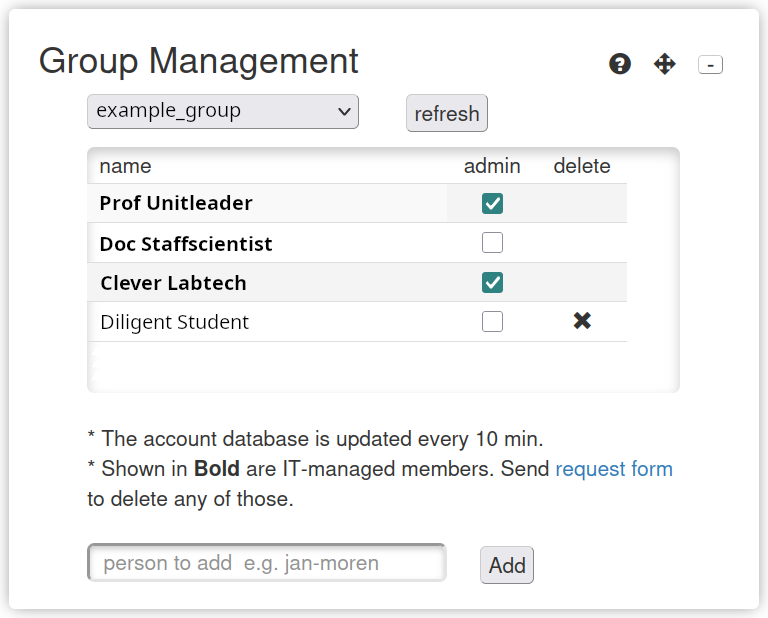
You can remove users again by clicking the “X” in the “delete” column. Remember to remove people when they leave; if you do not, they will continue to have full access to all internal unit data. Note that you can only remove users that aren’t in your unit by default.
If you want to delegate this task to a unit member, you can check the “admin” checkbox next to their name, and they will be able to add and remove members on your behalf.
When members leave, they sometimes leave behind data owned by their account. If you want access to that data in Bucket, Flash or Work, you can request us to change the ownership of it to yourself or to somebody in the unit. If you have appointed somebody to handle the storage on your behalf, they can do the request.
If the data is in the users home; or if it is data from a closed unit, then things get more complicated.
This page has all the details.
You may want to direct new unit members to our HPC application form; they select “Open Resources” to get access to the Deigo cluster.
We have periodic training on using our HPC systems here and on using the command line here. It’s normally held three times a year, usually in late September or early October; late January or early Februari; and in mid-May. It’s a good place for new unit members to learn about using HPC systems at OIST.
We try to keep software costs low by promoting open source when possible; and buying site-wide or group licenses when multiple units need commercial software. Our desktop software is here: Desktop Software User Guide, and you can see available software on the clusters using the “module” command while connected: Use the Module System. We also have software licenses bought by units that no longer need them, and can offer them to you.
If you need licensed research software, first contact us (at ask-scda@oist.jp). We can see if we already have a license for the software you need. If we don’t, we can make a survey to see if other research units might need the same software.
OIST has standardised on eLabFTW as the electronic lab notebook software at the university. It is popular, well-regarded and open source. If you want a workspace for your unit, contact us at ask-scda@oist.jp and we will set you up.
On the cluster, users get access to 2000 cores for 4 days in the “compute” partition, and up to 4000 cores for 2 hours on the “short” partition. Some jobs need more cores for longer than that. The “Largejob” partition gives a user 6200 cores for 2 days, for a single job at a time.
Unlike other partitions, “Largejob” is managed by the Scientific Computing Committee. To get access, you as a PI must apply on behalf of one of your unit members using this form. They then have to show that the code has good scalability up to 4000 cores using the “short” partition before we grant them access.
As faculty at a Japanese university, you have access to the Japanese national HPC infrastructure, or “HPCI”. First and foremost it can give you access to the Fugaku supercomputer in Kobe, but also to other national HPC systems.
This page (in need of updating) can give you a start on getting access. Be aware that the process is a bit more long-winded and cumbersome than using Deigo or Saion locally at OIST.
It’s not uncommon to have external collaborators as a research unit. Collaborators can be completely external, or have a visiting research agreement that give them an OIST account. Here are the current main points to keep in mind:
It’s not possible to get access to HPC systems or storage without an active research (not administration) OIST account. This includes former members who are leaving OIST.
Visiting researchers have an OIST account, but may still have limitations, especially if they are not physically at the OIST campus. They may lack access to some licensed software for instance.
For external collaborators without an OIST account, you can share documents and files through Sharepoint “Access packages”. The IT division can set up a workspace in Sharepoint you can share with external users specifically to collaborate with researchers ar other universities. Please contace the IT division on how to set up and manage it.
For members who leave, you can apply for a temporary account extension on their behalf if they need it to finish up current work. Note that it should ideally happen well before their time at OIST has ended.
For the technically inclined: Each unit has a Unix group, and access is limited to group members. Your primary group at OIST is the unit or section you work for, but students have “allstudents” as their primary group. Adding a person to the unit storage means adding the unit group as a secondary group for that person. ↩