



Here is how to get access to the Deigo and Saion clusters and how to connect to them.
You can access bucket as a remote folder without a cluster account. But if you want to use “scp” or “rsync” to transfer data directly you do need it. See the page on transferring data.
Here are the steps to use the cluster:
We need an account to access Deigo and Saion. It’s very easy to apply for a general account: Click on the “Open Resources” form on this page, tell us that you’d like access and press submit. All OIST members get access to the clusters. We will normally set it up for you within a working day.
You can ask for access to the open partitions on Deigo and Saion with no restrictions. We also have other partitions available with large amounts of memory or with GPU accelerators. You need to apply for those separately (use the “HPC Restricted Resources” form on the page), and you need to give us a reason for using them. The partitions are summarized on this page.
We log in to the clusters with a program
called “ssh”. It stands for “Secure Shell” and is the most common
way to connect to remote servers and cluster computers. With SSH you can
connect interactively, run graphical applications and transfer files
securely over a network.
To connect you need to be on the OIST internal network, either the wired network or on the “OIST” Wifi network. “OIST-Public” or “Eduroam” will not work.
To connect remotely you can use a VPN to OIST, or you set up key-based logins like we detail below. We recommend that you set up keys no matter what, as it lets you log in without having to use a password.
Your login name and password is your OIST user name and password. Try to log in as we show below:
On Linux you already have all software installed.
Open a terminal and type:
$ ssh -X oist-id@deigo.oist.jp
Note: It is your OIST ID, your firstname-lastname with a hyphen, not your email address firstname.lastname. And the name of the system is “deigo” as in the Okinawan flower, not “diego” as in a Spanish guy.
You can log out again either by typing exit followed by a return, or
press CTRL+d.
The ‘-X’ parameter is optional and tells ssh to allow graphical applications to display their windows on your local computer. If you want to access Saion, use “saion.oist.jp” instead of “deigo.oist.jp”
You can now connect to the cluster from within OIST. But you can’t log in from outside OIST, and you need to enter your OIST password every time. You can set up SSH so that you don’t need to type your password any longer. Please proceed to the next section on using public key authentication.
SSH is already installed on the Mac. If you want to display graphics, you first need to install a piece of software called XQuartz. The installation is straightforward:
To use SSH to access the clusters, Open a terminal (in the Utilities folder) and run:
$ ssh -X oist-id@deigo.oist.jp
Note: It is your OIST ID, your firstname-lastname with a hyphen, not your email address firstname.lastname. And the name of the system is “deigo” as in the Okinawan flower, not “diego” as in a Spanish guy.
You can log out again either by typing exit followed by a return, or
press CTRL+d.
The ‘-X’ parameter is optional and tells ssh to allow graphical applications to display their windows on your local computer. If you want to access Saion, use “saion.oist.jp” instead of “deigo.oist.jp”
You can now connect to the cluster from within OIST. But you can’t log in from outside OIST, and you need to enter your OIST password every time. You can set up SSH so that you don’t need to type your password any longer. Please proceed to the next section on using public key authentication.
Windows lacks the software needed to connect to the cluster and to run graphical applications remotely. We need to install an SSH client.
There are several popular clients, and if you already have a favourite then please use that. We currently recommend MobaXTerm, as it allows you to display graphics without any extra installation.
You can also use WSL on Windows to run a Linux instance, and connect from that. And the Windows terminal does have an SSH client, but will not be able to display graphics.
MobaXTerm: go to the download page here. Some users have experienced problems using the installer, so select the “portable” version:
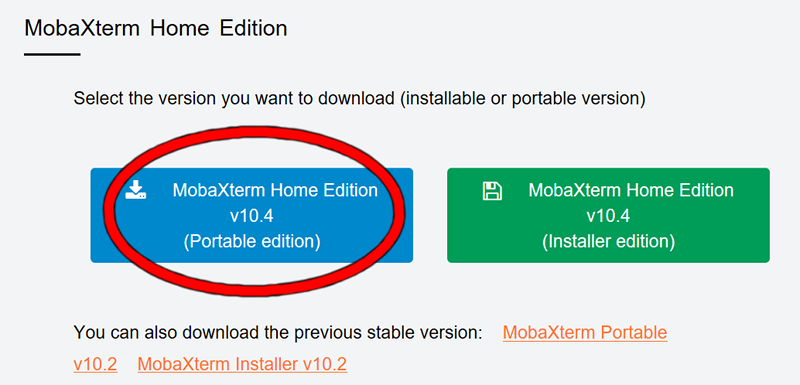 Click to unpack somewhere. You start it by clicking the program itself,
or you can right-click, create a shortcut, move the shortcut to the
desktop, then click that instead.
Click to unpack somewhere. You start it by clicking the program itself,
or you can right-click, create a shortcut, move the shortcut to the
desktop, then click that instead.
When the window appears, start a local terminal session:
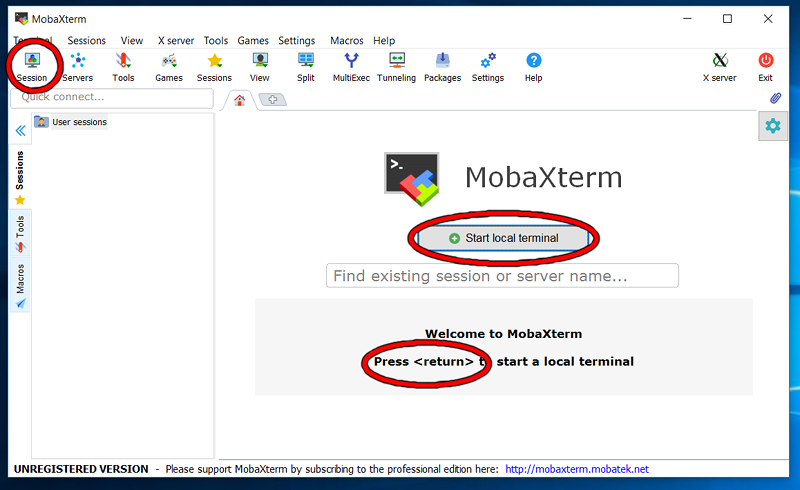
Click “Start a local terminal”, or press the return key. If it doesn’t appear, you can select “Session”, then “local terminal” in the list.
Once the terminal appears, you log in to Deigo using:
$ ssh -X oist-id@deigo.oist.jp
Note: It is your OIST ID, your firstname-lastname with a hyphen, not your email address firstname.lastname. And the name of the system is “deigo” as in the Okinawan flower, not “diego” as in a Spanish guy.
You can log out again either by typing exit followed by a return, or
press CTRL+d.
The ‘-X’ parameter is optional and tells ssh to allow graphical applications to display their windows on your local computer. If you want to access Saion, use “saion.oist.jp” instead of “deigo.oist.jp”
You can now connect to the cluster from within OIST. But you can’t log in from outside OIST, and you need to enter your OIST password every time. You can set up SSH so that you don’t need to type your password any longer. Please proceed to the next section on using public key authentication.
SSH can use public key authentication. We will create a pair of keys (long random numbers), one public and one private. We copy the public key over to your account on the cluster and keep the private on your local machine.
When you log in, SSH will use those keys to determine that you are who you are and log you in without a password. If your public key is installed on a machine, you can access it from any computer that has the private key. The public key is like a door with a lock that you install, and the private key is the key that opens that particular lock.
If you are using MobaXterm, go to “Settings” → “General”, then set the “persistent home directory” to a new directory somewhere. If you don’t, changes you make here won’t be saved and will disappear once you exit MobaXterm!
Here are the steps. all steps are on your local computer
Make sure you are logged out of deigo. If you are logged in, type “exit” and press enter.
On your own local computer — not on Deigo — you create a new key-pair with the following command (for Windows, enter the commands in the MobaXTerm terminal window):
$ ssh-keygen
Follow the prompts and accept all the defaults. Just press enter about four times. Don’t create a passphrase. If it says that a key already exists, then stop. You already have a key pair and don’t need to generate another one.
This creates two keys, one private and one public. You copy the public key to machines that you want to access. A computer that has the private key can then log in to those machines without a password.
Copy the public key over to Deigo. SSH has a convenient command to do this (replace “oist-id” with your OIST ID):
$ ssh-copy-id oist-id@deigo.oist.jp
ssh-copy-id should ask you for a password and copy your public key to the cluster. Enter your OIST password.
Try to log in again. You should now be able to so without giving a password (replace “oist-id” with your OIST ID):
$ ssh -X oist-id@deigo.oist.jp
It gets fairly tiresome to have to type out your user name and the full address of the systems all the time. Fortunately, we can take care of this.
We can create a config file for SSH. In the directory
~/.ssh/ (this is a subdirectory to your home) on your laptop (not on
Deigo!) you can create a file “config” where you can set up
your ssh configuration.
You can copy the config file from deigo using scp
(it’s a companion command to ssh that lets us copy files over the network):
$ scp oist-id@deigo.oist.jp:/apps/share/training/Bash/config .ssh/
This will copy the below file into .ssh/config for you.
User oist-id
IdentityFile ~/.ssh/id_ed25519
ForwardX11 yes

Host deigo
    Hostname deigo.oist.jp

Host saion
    Hostname saion.oist.jp

host oist-ext
    hostname login.oist.jp

host deigo-ext
    ProxyCommand ssh -q -W deigo.oist.jp:22 oist-ext

host saion-ext
    ProxyCommand ssh -q -W saion.oist.jp:22 oist-ext
This config file gives short, memorable names to our systems, and a way to easily log in from outside.
You need to do one thing: The first line of the file sets the user name.
You need to change that to your OIST user name. Open the file with the
nano editor:
$ nano .ssh/config
(in MobaXterm you can install nano with the command “apt install nano”)
change “user-id” on the first line to your user ID (something like “sam-vimes”). Save with control+o and exit the editor with control+x.
Now you can log in by typing:
$ ssh deigo
Much less to type!
You can access the OIST clusters from outside OIST in two ways. The first is to apply for the OIST VPN. When the VPN is active you can access Deigo and Saion in the same way as when you are at the OIST campus.
The other way is to use SSH to access the HPC systems directly from outside, without using the VPN. Using ssh directly will be faster and more reliable. The drawback is that you can only use the connection through SSH. If you want to access the storage through remote folders on your desktop, or access internal web pages you need the VPN access.
To access the clusters with SSH you need to set up key-based login, as we explained in the previous section. Also set up your config file.
Once you have done so, you can access Deigo directly by connecting to
deigo-ext (ext for “external”):
$ ssh deigo-ext
Use saion-ext for connecting to Saion from outside.
Note that these normally only work outside OIST. Inside OIST, use
“deigo” and “saion” to connect.
The clusters themselves are not accessible from the outside, but we have a proxy server that you use to first log in to OIST, then log in to the clusters from that server. The config file above does this for us automatically. You can do this manually too if you want:
$ ssh -X oist-id@login.oist.jp
$ ssh -X oist-id@deigo.oist.jp
You now have full access to the clusters and to the storage through SSH.
To copy data to and from storage, please refer to our page on transferring data.
If you want to start using our clusters for computations, please read our Slurm guide.