



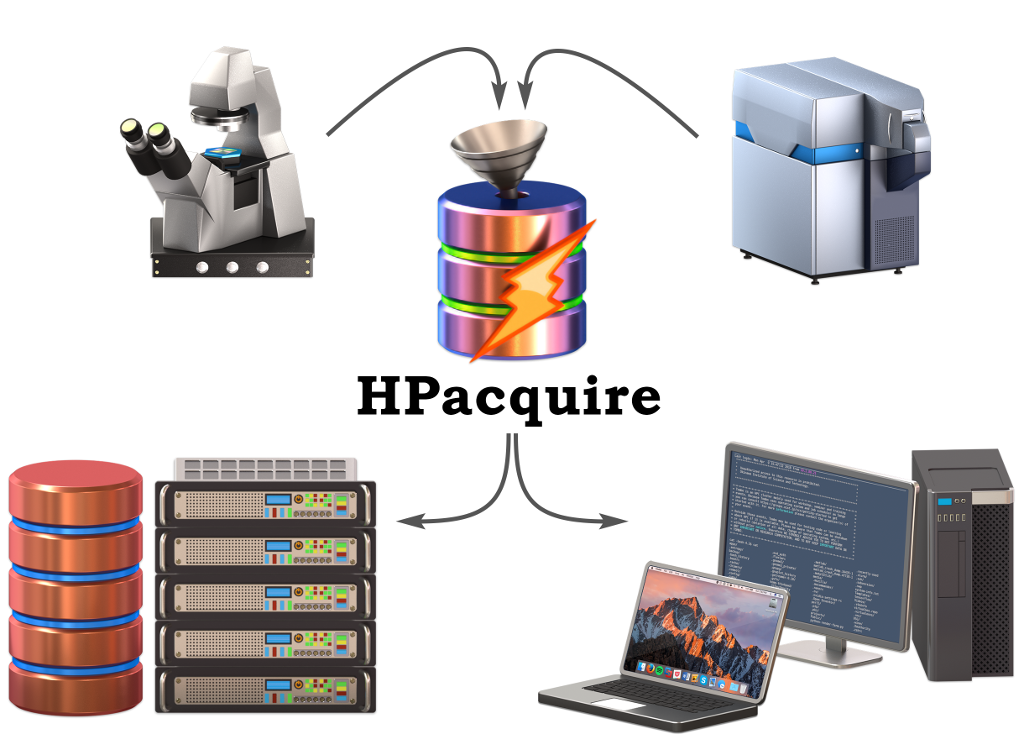
HPacquire is a temporary storage system that allows you to securely move data from your experimental instruments or computer to your office workstation, laptop, or to access the data from the HPC clusters. It is a replacement for USB sticks and portable drives when you need to get data off an instrument.
You can use HPacquire from any device connected to the OIST network. Access to HPacquire is private and secure: you access the storage using your OIST credentials, and only you can see and access your data.
HPacquire has a self-cleanup feature: Any data that has not been used for more than 21-days (three weeks) is deleted. Please make sure that your important data has been copied on to other persistent research storage (Bucket, etc.) or to your office computer. Deleted data can not be retrieved.
If you are running Windows, we recommand you to use WinSCP to transfer data from your measurement computer to the hpacquire-ui.oist.jp server. WinSCP is free software to securely transfer data using the SSH protocol. You can download the “Portable executables” version from here.
After unpacking the downloaded zip file, excecute the binary file (no
need for Administrator priviledge) by double clicking on the .exe
file. Then, you should be able to obtain a login dialog box as below.
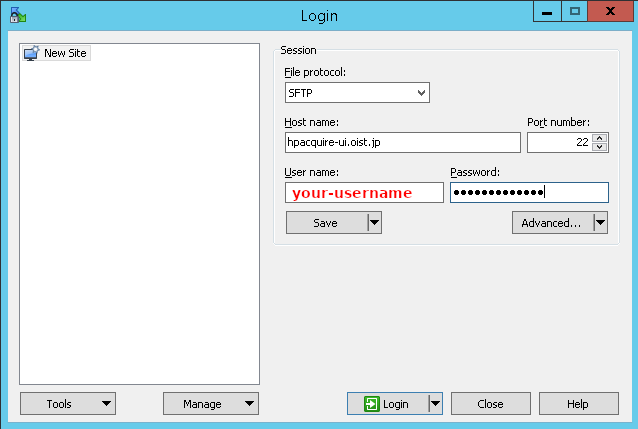
In the Login dialog box, make sure to select SFTP protocol,
hpacquire-ui.oist.jp as the Host name, 22 for the port number, and
finaly enter your OIST account username and password.
After clicking on the Login button, you will obtain a split file browser window, showing your local computer filesystem on the left and HPacquire filesystem on the right. On the right side, click on the directory named after your username. You are now ready to transfer files in both direction.
When connecting to the HPacquire storage (hpacquire-ui.oist.jp) using
the SMB or CIFS protocol, you can see your data from the share called
“data”. It will be the only share visible and only your data will be
available in this share.
From Windows
\\hpacquire-ui.oist.jp\dataOIST\your-username for your username and enter your password
when prompted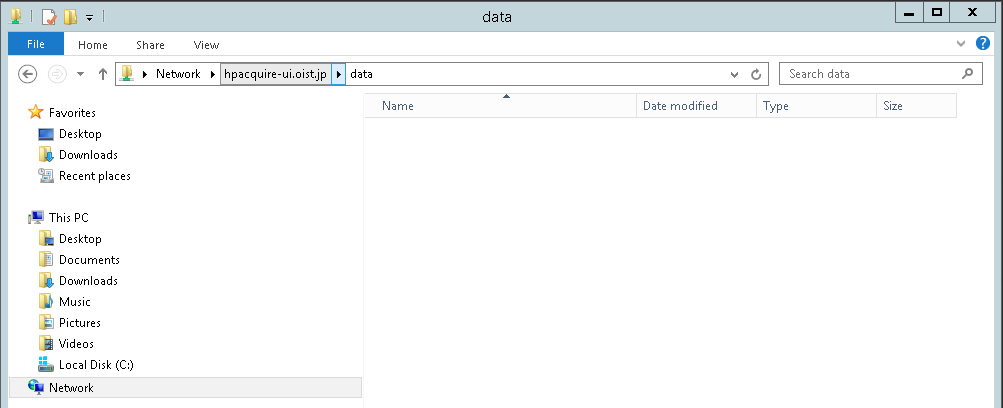
From MacOSX
smb://hpacquire-ui.oist.jp and click
to the Connect buttondata” and enter OIST for the
Workgroup/Domain and, enter your account username and password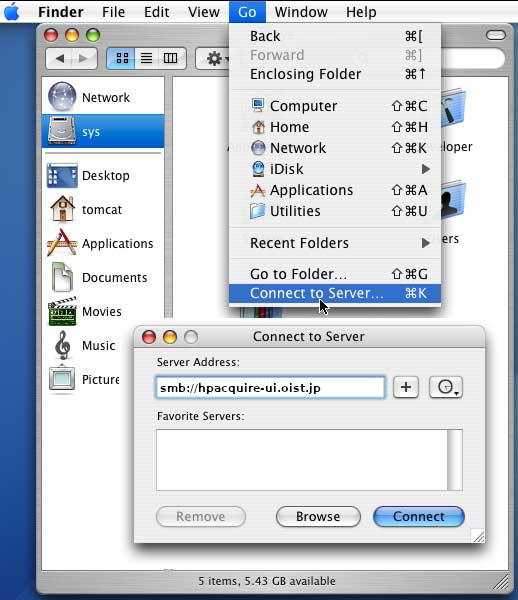
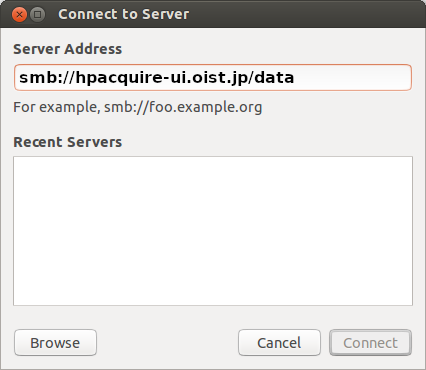
From Linux (ex with Ubuntu)
smb://hpacquire-ui.oist.jp/data and
click to the Connect buttonOIST for the Domain, and enter your account username and
password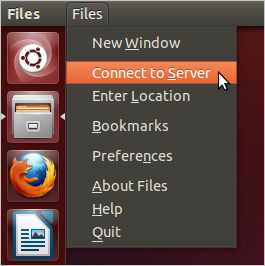
You can then copy your data to your local computer/laptop, or to other
research storage (for example \\bucket.oist.jp\bucket, or
\\sango-cifs.oist.jp\work for sharing)
SFTPConnect to HPacquire via SFTP
localcomputer:~> sftp your-username@hpacquire-ui.oist.jp
Getting help, by typing ? or help in the command prompt
sftp> ?
Display remote working directory files and subdirectories
sftp> ls
Move to your directory on HPacquire
sftp> cd your-username
Display files and subdirectories in your local computer
sftp> lls
Recursively copy directory exampledir (all files and sub-directories)
from HPacquire to your local computer
sftp> get -r exampledir
The HPacquire storage is mounted in read-only mode on all the nodes
of the cluster. You can access your directory through the path
/hpacquire/users/YOUR-USERNAME where YOUR-USERNAME is your actual
username. Note that you can’t access other users directories and other
users can’t access your directory.