



For general information on our storage, see Research Storage.
The Bucket storage and the Naruto tape system together form our secure long-term research storage infrastructure. It is used for live storage of research data; for off-site backups; and for long-term archiving of data sets that you no longer will need.
Bucket is our large-capacity network file storage system. You can access it from the HPC clusters, from research instruments via HPAcquire, and from personal computers through SSH or mounted as a remote folder.
For the different ways to access Bucket, please see our page on transferring data.
Bucket
| Total capacity | 60 PB |
| Per-unit allocation | 50 TB (expandable) |
Each research unit gets a 50TB storage allocation, and this can be increased if needed. You can request an increase using the form on this page.
There are a few rules and recommendations around using Bucket:
Bucket is used for non-sensitive research data only. Other types of files are not allowed:
Medical and sensitive research data with PII (personally identifiable information) is not allowed. Please contact us if you need to handle such data.
Administrative files are not allowed on Bucket. They frequently contain confidential information about the unit, personal information on unit members and other sensitive data. On Bucket it’s too easy to make this available to all members by mistake (this has happened!). Use Sharepoint for this.
Laptop and workstation backups. Computer backups will often contain licensed software, copyrighted media and so on that are not allowed to store on our systems, as well as files that are not research data. Bucket is not a backup target.
Personal files. Your holiday pictures, paper drafts, personal documents and so on are often PII (personal information), and also not research data.
Pirated software, movies, music etc. is absolutely forbidden at OIST. If this is discovered or reported to us you will lose access to all our systems.
Bucket is large but not infinite. Also, the number of files as well as the total amount of data matters for the health of the storage.
For your own sake, practice good research data management. Document the origin, format and content of your data.
define your data lifecycle: Have a well-defined pipeline for your processing, and know when to archive or delete data you don’t need.
Please do not store huge amount of small files. If you have more than a few thousand files in a folder, we strongly recommend that you use zip or tar to pack them together into an archive. It reduces the load on the system, and makes it much easier for you to deal with. If you’ve ever tried to open a folder with 10k+ files from Windows, you know why you should pack files into archives.
With a design capacity of 60PB it is not possible to backup everything. It is too much data, and takes too much time. And of course, a lot of data is copied from somewhere else, temporary, or not long-term useful in some way. Even in a very well curated data store, not everything needs backing up.
NOTE: Data not in the backup folder will no longer be backed up. See the migration guide for details.
Each research unit has a “Backup/” folder at the top of their Bucket
storage. The folder is 100TB in size, and is separate from the unit
storage itself. This folder is your local backup. You can update it as
often as you like.
To backup your working data you make a copy of it in the Backup/ folder
(see below). And to update the backup copy you overwrite it with the newest
data.
The system scans the backup folder weekly. For each backup file it creates a snapshot if the file has changed. The snapshot is stored remotely on the Naruto tape system. This remote backup holds at least 5 snapshots for at most 6 months, though it always keeps at least one snapshot.
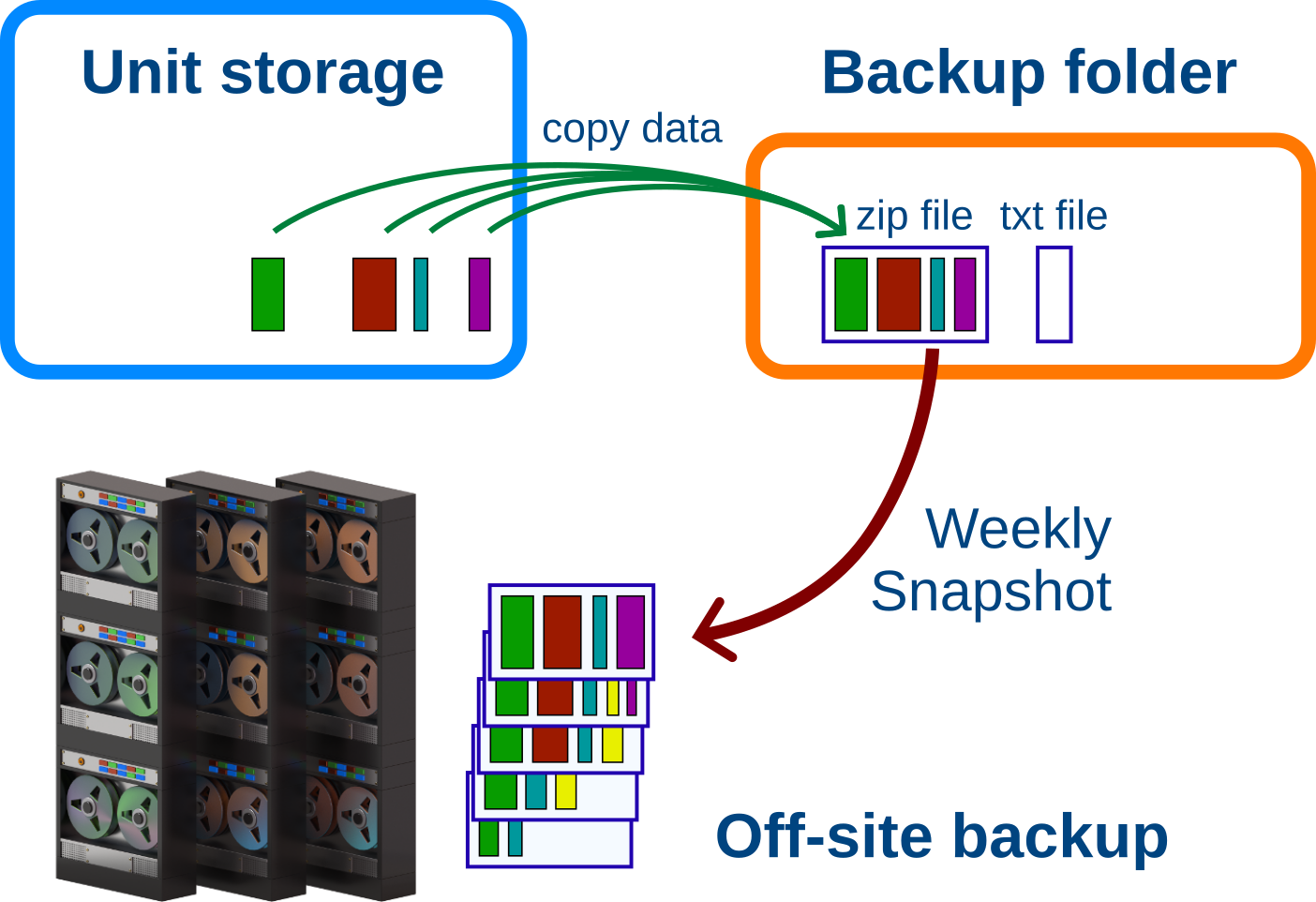
For Example: You backup your active project almost every day with new changes. Your local backup copy has the latest copied version of your files. Once a week, the system creates a new snapshot of your backup and saves it remotely.
After about 1 month there are 5 weekly snapshots of your project. When the next snapshot is added, the oldest snapshot is deleted, to keep the total at 5.
Once you stop working on the project, you no longer update the backup. New snapshots are no longer being made.The existing snapshots will become older and older. Once a snapshot is older than 6 months, it is deleted. However, the last snapshot is not deleted. It will remain as long as the local backup copy is there.
If you are never going to use the data in the future but can’t delete it, consider archiving it instead so it doesn’t take up space in your backup.
We do not accept individual files and folders in the backup folder. It is very inefficient to move and store many small files; also, it’s much easier to find and restore data if it is already organized in a recognizable way.
Instead we ask you to create an archive file and a description file for each backup. It could be one backup per unit member, or per project, or some other way.
1. Copy all the files you want to back up into an archive file under
the Backup/ folder. The archive can be zip, tar, tgz or some other common
format. Zip or tar are safe choices.
Call the file something descriptive: “Janne_neuron_project.zip”
On the command line you can create a zip archive directly in the backup folder like this:
# go to the top of your bucket storage
$ cd /bucket/MyunitU

# create the backup archive
$ zip -r Backup/Janne_neuron_project.zip Janne/neuron_project
”-r” tells zip to recursively copy all data in all subdirectories. THe
first path is where to put the finished zip file. The following paths are
to the data you want to backup.
2. Next, create a text description file with the same name next to the
backup archive file. With the zip file above, this would be
“Janne_neuron_project.txt”.
This text file should have the following format:
name: Your Name
project: A name for the project

Any description or further details about
the backup archive; what it's for, what it
contains and so on.
The purpose is for you, your PI or somebody else to understand what the
backed-up data is about, perhaps months or years later. The “name:” and
“project:” lines are important. Without them the data won’t be backed up.
Once the archive file and text file are created in your local backup folder, the system looks for new or changed backup files every week and creates a new remote snapshot.
To update the backup, create a new archive file with the same name and extension, with the new data. You can create it in place if you like, and you don’t need to touch the text file if nothing there has changed.
For example: To update the zip archive we created above you can run the exact same command again:
# from the top of the unit bucket run:
$ zip -r Backup/Janne_neuron_project.zip Janne/neuron_project
Zip will compare the project files to the ones already in the zip archive and add or update any changes since the last time you ran it.
Once the remote backup process notices that your backup file has changed, it will create a new remote snapshot with the changes.
If you need to restore an entire backup, or just a subset of files, contact us at ask-scda@oist.jp. Tell us as clearly as you can what backup or files you need (this is where having a good description helps) and we will try to find and restore it if we can. Exact backup name, file paths, and time all really helps narrow it down.
Our archiving service will securely store any data you no longer need access to. OIST research policies specify that reserch data belongs to OIST, and according to Japanese law such data must be archived for future reference.
If you have data sets that are no longer used, you are not allowed to throw it away. Instead, you can archive it on to tape. This will free up storage for your unit, and help you reduce clutter.
For the details and how to request data archiving, please see this page.
Naruto is the OIST tape storage system. It is located off-site in Nago, so even if a disaster strikes the OIST datacenter the data on Naruto is still safe.
Naruto
| Total capacity | ~13 PB |
| Tapes | ~1000 (number and capacity varies) |
The tape system is an IBM TS3500 tape robot system with around 1000 tapes and a total capacity in excess of 13 PB. The system manages all tape operations, automatically verifies tapes on a regular basis and manages data duplication and migration as needed. We add tape to the system as needed to ensure there is sufficient capacity for both backups and archives.
We have implemented the new Bucket backup system as of April 2026. Here’s some information around this - or jump directly to what you need to do below.
Q1: How did backups work before?
A1: All of Bucket was backed up, once a week. At the time, we stored about 7PB of research data and backing up the changes took about 3 days.
Q2: How do backups work now?
A2: Each unit has a local backup folder of a fixed size. Only data copied into that folder is backed up remotely. In addition the data must be collected into an archive file and minimally documented. See above for all the details!
Q3: Why did we change the backup process?
A3: With 7PB data the weekly backup takes 3 days. During the backup cycle no other activity (restoring backups, archiving data) can take place. At about 15PB we would no longer be able to run backups weekly. By about 40-50PB of use we would no longer be doing it monthly - and we’d have long since ran out of space in the tape system.
With the new system the total backup volume is constrained. Also, packing data into archive files greatly improves the efficiency of the process and makes it easier to find and restore data if needed.
Q4: What if 100TB is not enough to backup all our data?
A4: Most research units don’t have 100TB total in their Bucket storage. A few units have more, but of course not all data needs to be backed up - it’s temporary data, or a copy from somewher else, or should be archived. If you are a PI in one of those units and feel 100TB is not enough then please contact us directly!
Q5: All My data is important. Backup everything!
A5: We are constrained by the tape storage size, and also by the bandwidth to Ginoza. It is technically possible to fix both issues, but it is economically infeasible to do so.
Our current storage system is very reliable; far more so than, say, a desktop storage NAS, never mind a laptop SSD or a USB backup drive. The backups are here to handle two failure scenarios:
We have a site-wide disaster (a major earthquake, say) and the data center is demolished and the storage along with it. The recovery will take months or more, and would necessarily be focused only on the most critical data.
Someone accidentally deletes a file they shouldn’t have. Your local backup folder will have the latest backup so you can go there and recover the lost file directly.
The risk of data corruption in Bucket - a real concern for laptops, USB drives or a NAS - is very small, and not something we worry about.
The existing old-style backups remain on the tape system. The last old backup will be kept at least for a year or more - any old unit data will have a backup.
But no new backups will happen until you start adding archives to the Backup folder.
So, ask all unit members to look at their data on Bucket and decide what
is worth backing up. Then follow the guide above to
create backups in the “Backup/” folder.
Discuss internally what kind of backup strategy you want to have in your unit (if any - if you’re not using Bucket a lot then each member deciding on their own is probably fine).
Do you want a backup file per member? One backup per project? Can a unit member split their work into multiple backup archives? What information should the description file have?
Feel free to ask us for advice on your particular situation.